

Bulk process via RustDesk (3 tabs)
Once your records are sanitized (see the overview), you move to the dedicated processing PC and run the bulk-process step. The PC has three screens — one per tab — so you can run Key-In, POC, and RPOC concurrently. The whole thing usually takes about five minutes once you have the rhythm.
Step 1 — Connect to the processing PC via RustDesk
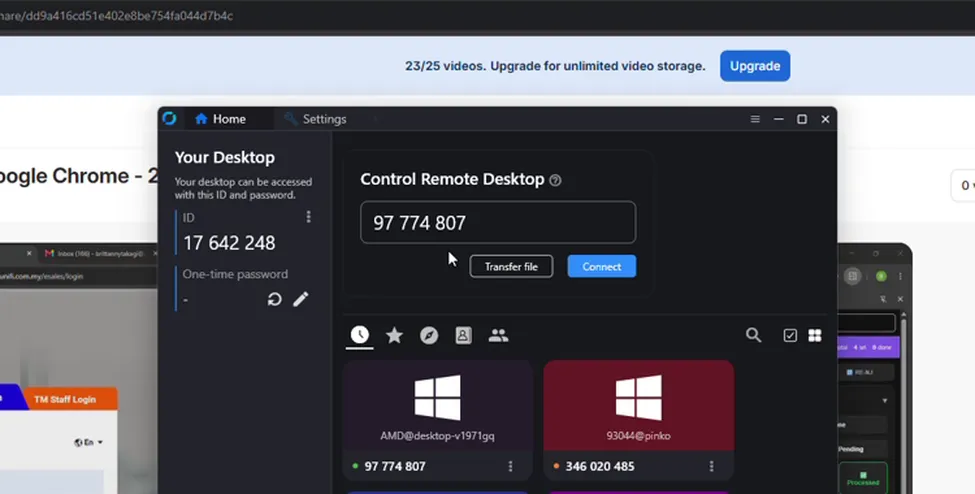
Section titled “Step 1 — Connect to the processing PC via RustDesk”Open RustDesk and connect to the processing PC. This PC is set up specifically for bulk-processing runs.
Step 2 — Confirm the three-tab layout
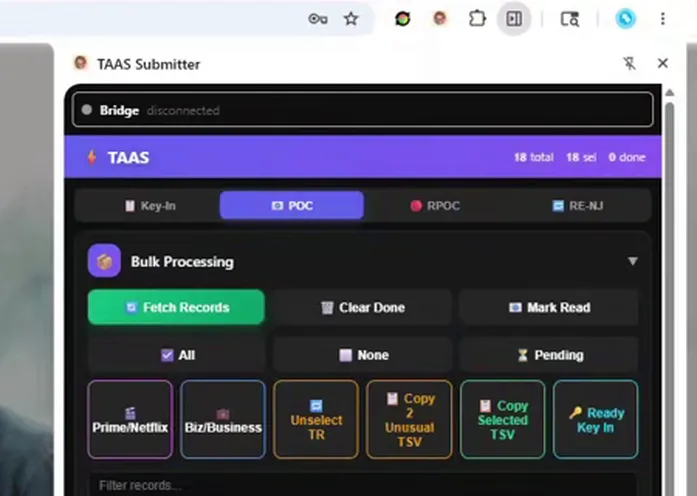
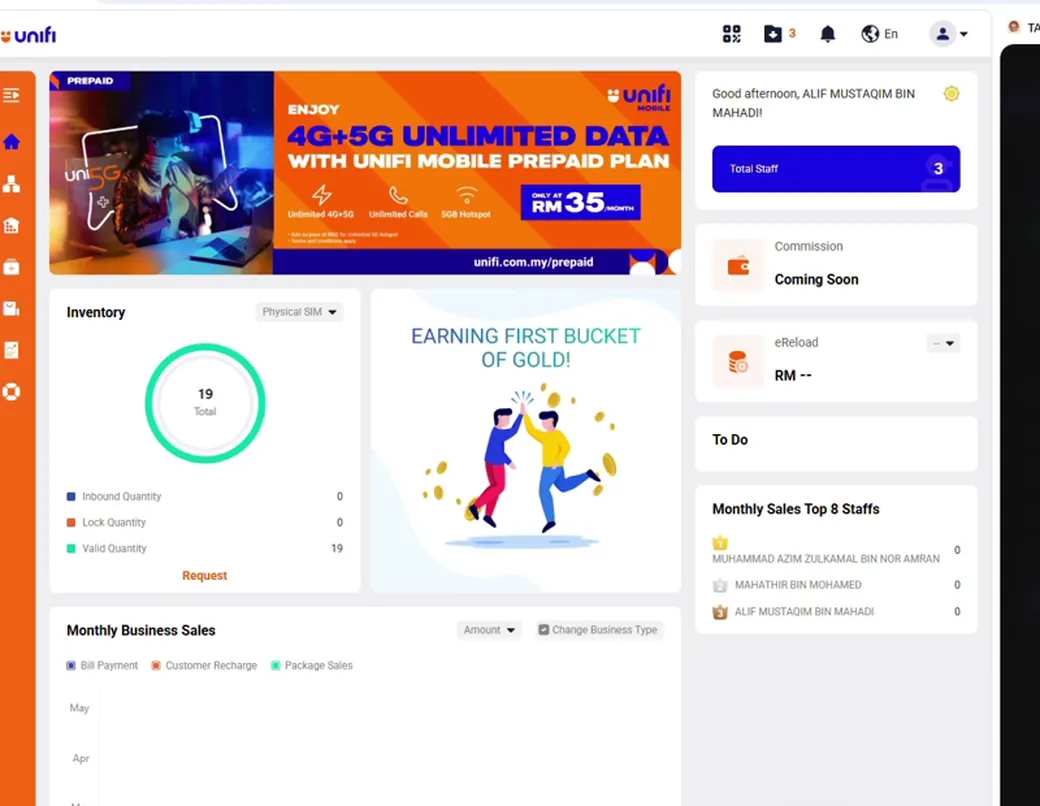
Section titled “Step 2 — Confirm the three-tab layout”On the processing PC you will see three screens, each running the Chrome extension. Screen 1 is the Key-In tab, screen 2 is POC, screen 3 is RPOC. This setup lets you run the same login → fetch → bulk-process flow on all three at once.
What POC and RPOC mean
Section titled “What POC and RPOC mean”When you key in a record, it does one of two things: it processes the order immediately, or it creates demand (which means “this address is in the system, please add it in”). Demand may later be approved — and when it is, the approval comes back as either a POC or an RPOC:
- POC — proceed with order creation. Approved through the official platform.
- RPOC — same idea, but the approval came back via a comment-reply rather than the official approval channel. Same outcome, different source.
Both mean: go ahead and create the order.
Step 3 — Login on the first tab (Key-In) and wait for the TAC
Section titled “Step 3 — Login on the first tab (Key-In) and wait for the TAC”On the Key-In tab, click Login. The system requests a TAC, pulls it from Gmail automatically, fills it in, and logs you in. Sometimes it takes a bit; occasionally you have to retry.

Step 4 — Fetch records, then bulk process on Key-In
Section titled “Step 4 — Fetch records, then bulk process on Key-In”Once logged in, click Fetch Records and then Bulk Processing. The orders start running. If a record is still flagged and you do not want to process it, unselect it before bulk-processing — but if you are short on time, you can let it error out and revisit later.
Step 5 — Repeat on the POC tab
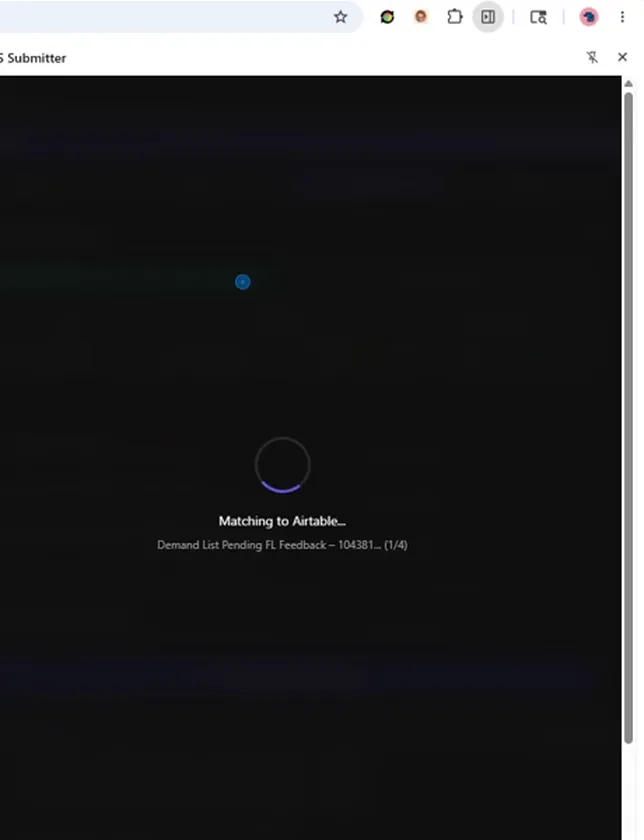
Section titled “Step 5 — Repeat on the POC tab”Move to screen 2 (POC). Click Login, wait for it to finish, Fetch Records, then Bulk Processing. You do not need to inspect anything here — the tab only contains records that were already approved and are ready to create.
Step 6 — Repeat on the RPOC tab
Section titled “Step 6 — Repeat on the RPOC tab”Move to screen 3 (RPOC). Same flow: Login → Fetch Records → Bulk Processing. RPOC parses for a bit longer than POC.
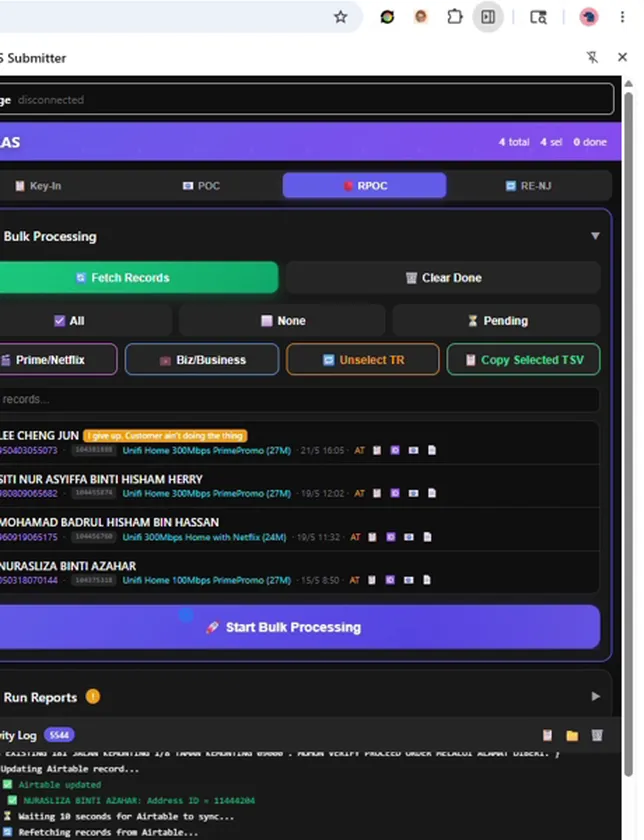
Step 7 — Optional: run all three concurrently (“trippy mode”)
Section titled “Step 7 — Optional: run all three concurrently (“trippy mode”)”You can run Login → Fetch on tab 1, then while it is fetching, start the same on tab 2, then tab 3. All three end up running at the same time. It looks chaotic, but it is the fastest way through.

Step 8 — Close the connection and come back later
Section titled “Step 8 — Close the connection and come back later”Once all three tabs are bulk-processing, you are done. Close the RustDesk connection — the PC keeps running. Troubleshooting any failed orders is a separate task after the run completes.