

Daily order processing — overview
This is your master checklist for the daily run. You usually finish it in about 5 minutes once the records are clean. The work is split into three phases: pull new TR Emails, sanitize records that have issues, then bulk-process across the three tabs.
Step 1 — Pull unread TR Emails
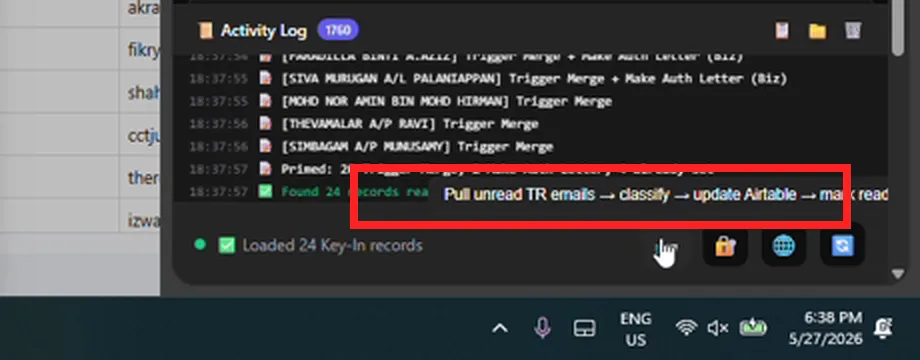
Section titled “Step 1 — Pull unread TR Emails”In the Chrome extension’s Key-In tab, click the Pull Unread TR Emails button at the bottom of the activity log. This one click pulls in any new transfer-request emails, classifies them, updates Airtable, and marks the emails as read. Easy to forget — do not skip it.
Step 2 — Fetch records and copy unusual ones to a sheet
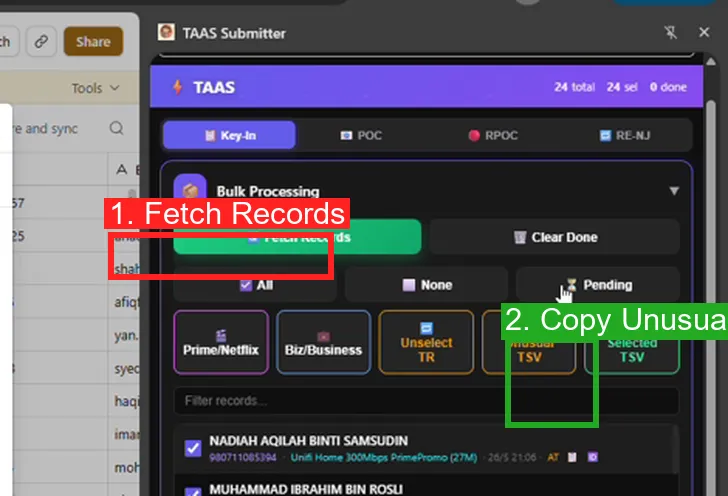
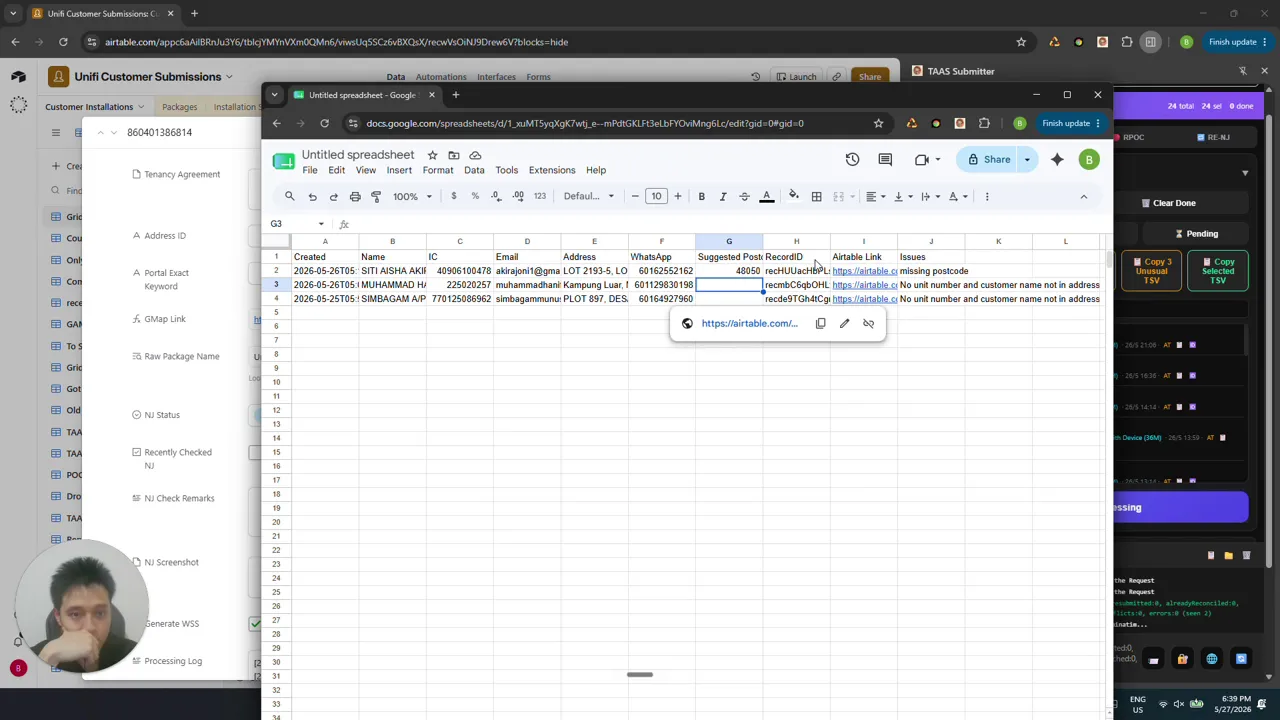
Section titled “Step 2 — Fetch records and copy unusual ones to a sheet”Click Fetch Records in the Key-In tab. This downloads everything that’s ready to submit. Then click Copy Unusual TSV — these are the records that have problems the system flagged. Open a new sheet via sheets.new and paste the content in so you can review each issue.
Step 3 — Sanitize each flagged record
Section titled “Step 3 — Sanitize each flagged record”Go through the unusual records one by one. The common issues are missing postcode, missing unit number, and TR records with missing VOIP numbers. Use the per-issue SOPs:
- Missing postcode → see Sanitize: missing postcode
- Missing unit number → see Sanitize: missing unit number
- TR record missing VOIP or incomplete bill → see Sanitize: TR missing VOIP
Some flags are false positives. If a record looks fine on review (for example “plot 897” being mis-read as a missing unit number), leave it alone — the bulk processor will handle it. The trade-off is real: more exclusions reduce false flags but risk missing actual problems, so do not chase every false positive.
Step 4 — Switch to the processing PC and confirm the version
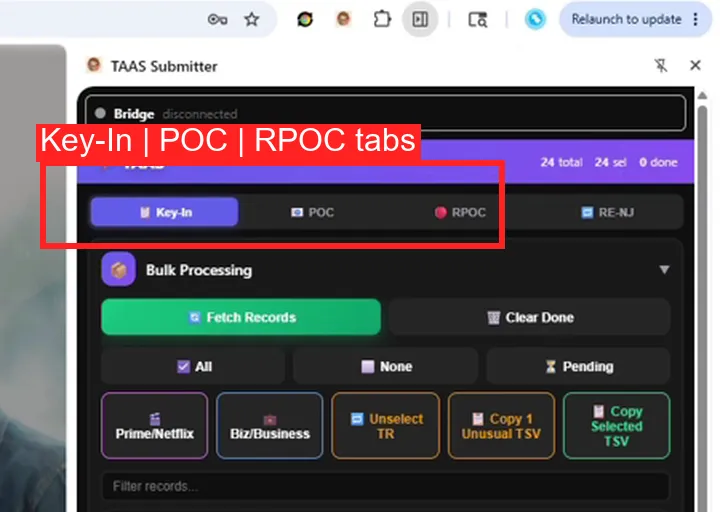
Section titled “Step 4 — Switch to the processing PC and confirm the version”Move to the remote PC over RustDesk. Confirm the Chrome extension’s version matches what you have locally — if you fixed records in your local Key-In tab, those fixes should already be visible here. The processing PC uses three screens: screen 1 is the Key-In tab, screen 2 is POC, screen 3 is RPOC.
Step 5 — Bulk process across all three tabs
Section titled “Step 5 — Bulk process across all three tabs”For each of the three tabs (Key-In, POC, RPOC): click Login, wait for the auto-login to finish, then Fetch Records, then Bulk Processing. You can run all three concurrently — start the next tab as soon as the first one is logged in.

Full step-by-step in Bulk process via RustDesk (3 tabs).
Step 6 — Close the PC and come back later for troubleshooting
Section titled “Step 6 — Close the PC and come back later for troubleshooting”Once all three tabs are bulk-processing, close out and let them run. Troubleshooting any failed records is a separate task done after the run completes.
Coming soon
Section titled “Coming soon”In the future we will need to cycle between four accounts to distribute orders and maximise profits. The tool will handle the login picker, but POC and RPOC are account-dependent — meaning a record’s approval is tied to whichever account it was keyed under. Account-aware distribution will be added later.