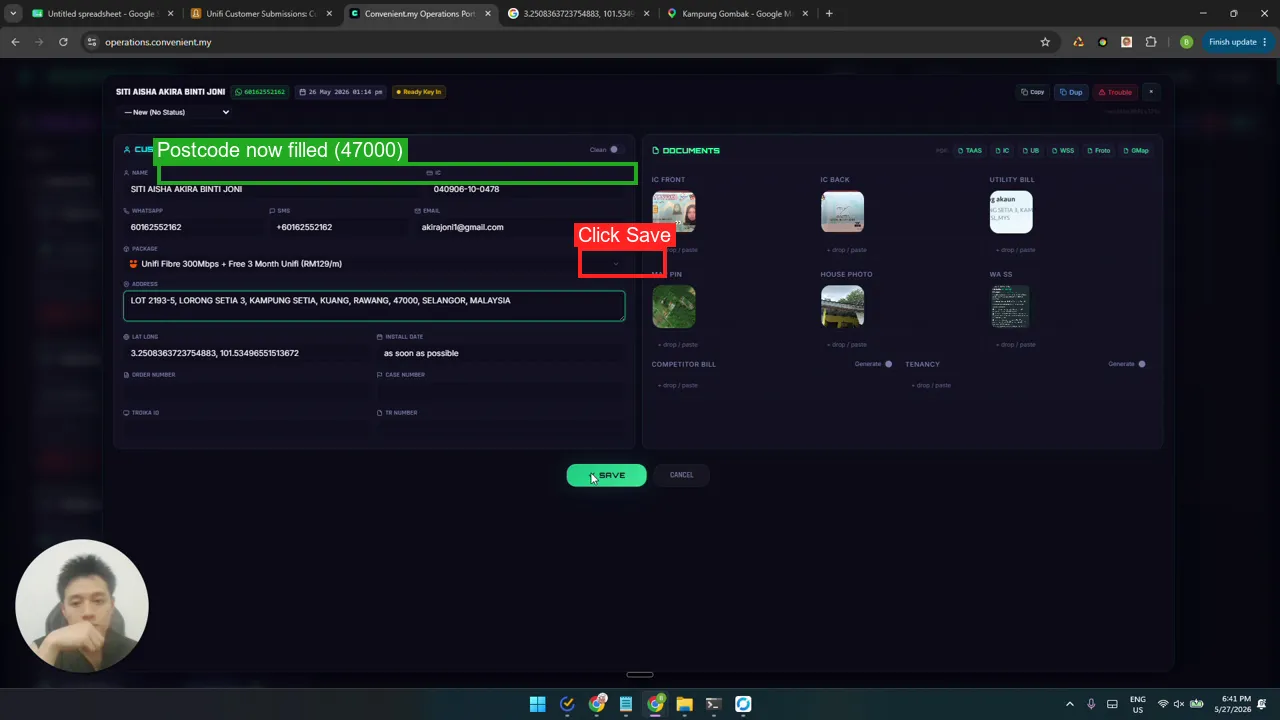

Sanitize: missing postcode
Some addresses come in without a postcode. The utility bill often does not show one either, so you have to look it up by latitude and longitude. This SOP walks you through the lookup and the cross-check before saving.
Step 1 — Identify the missing-postcode record
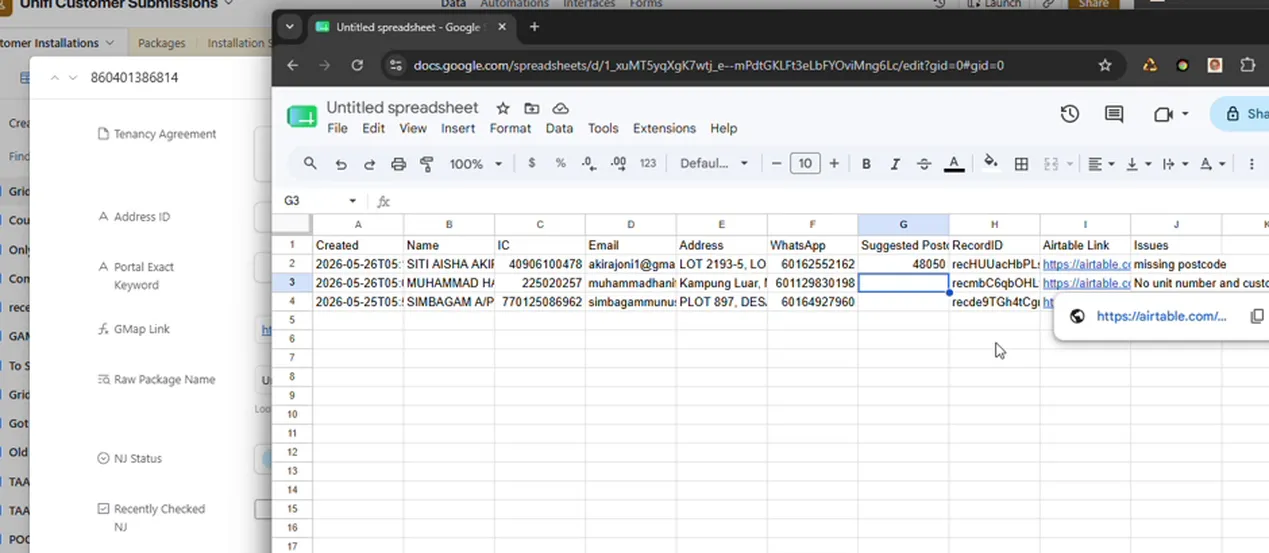
Section titled “Step 1 — Identify the missing-postcode record”In your sheet of unusual records (from the overview), find the row tagged with the missing-postcode issue. Copy the record ID — you will paste it into the portal in a moment.
Step 2 — Open the record in the operations portal
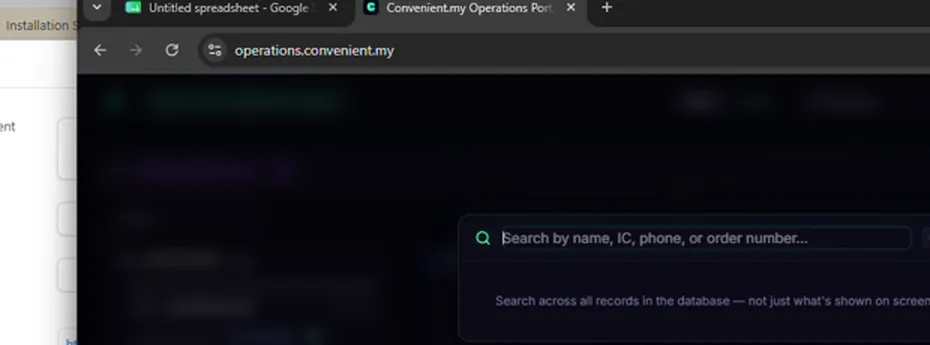
Section titled “Step 2 — Open the record in the operations portal”Go to operations.convenient.my and click Find Case. Paste the record ID and open the record. You can search by other fields too, but record ID is the most reliable.
Step 3 — Check the utility bill for a postcode
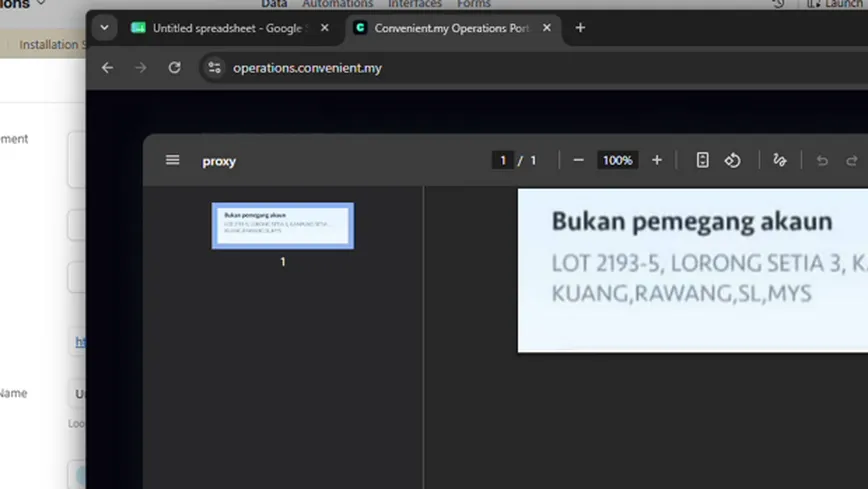
Section titled “Step 3 — Check the utility bill for a postcode”Click into the utility bill on the record. Most likely there is no postcode on it — that is why this record was flagged. Confirm this rather than assume; sometimes the bill does have one and you just need to copy it.
Step 4 — Look up the postcode via Google Maps
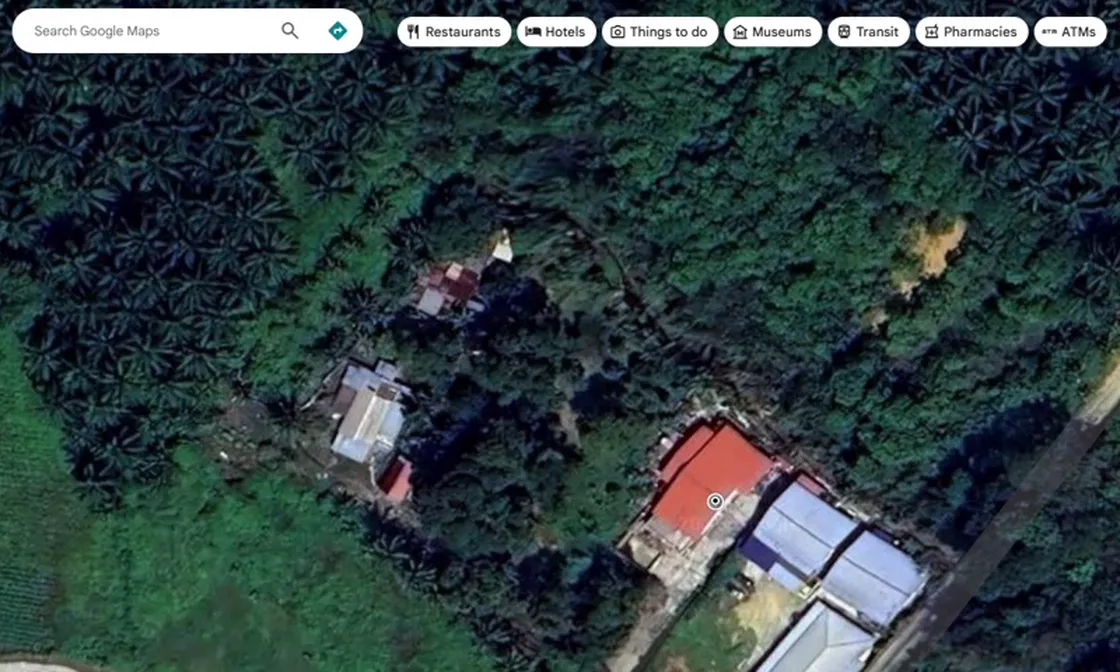
Section titled “Step 4 — Look up the postcode via Google Maps”The record usually has latitude and longitude. Paste those into Google Maps and click around the area to surface the postcode. A single click on the pin shows one value, double-click can show a different one — note both if they differ.
Step 5 — Cross-check against Airtable
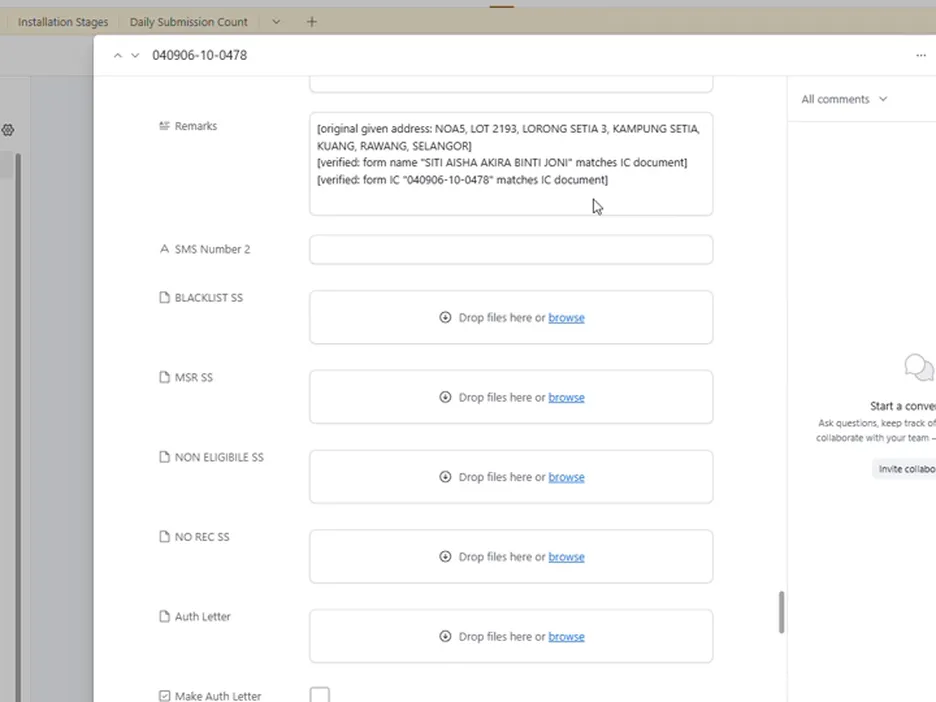
Section titled “Step 5 — Cross-check against Airtable”Open the record in Airtable. If the customer supplied a postcode there, compare it to what Google Maps says. If the customer left it blank and Google Maps gives a clear answer, trust Google Maps. If they conflict, do not trust the customer-supplied value blindly — go with Google Maps unless you have a strong reason.
Step 6 — Key the postcode in and save
Section titled “Step 6 — Key the postcode in and save”Back in the portal, type the postcode into the address field and click Save. Move to the next record.