
Sanitize: TR record missing VOIP
A TR (transfer request) is a customer switching from one telco to another. For these the system needs a VOIP number — the phone-line identifier — pulled from the utility bill. If the bill is not a PDF, or the bill is partial, the extraction fails and the record gets flagged.
There are two situations and they get handled differently. Check the bill first, then pick a path.
Step 1 — Identify the TR record with no VOIP
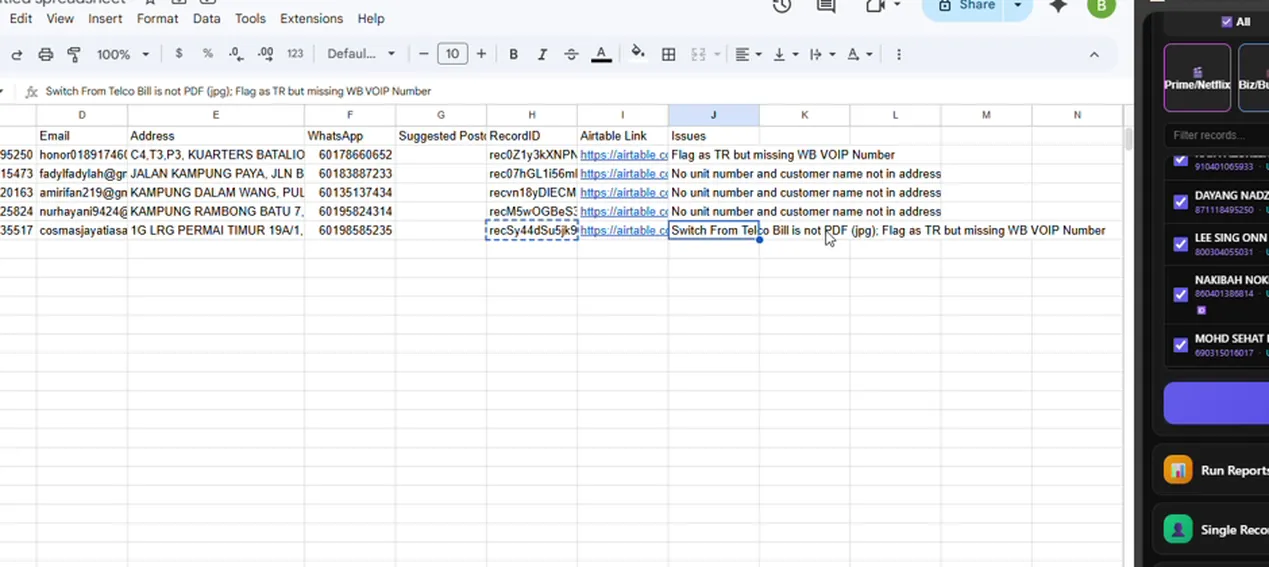
Section titled “Step 1 — Identify the TR record with no VOIP”In your unusual-records sheet, find a row tagged with the missing VOIP issue. Open the record in the portal.
Step 2 — Open the utility bill and look at it
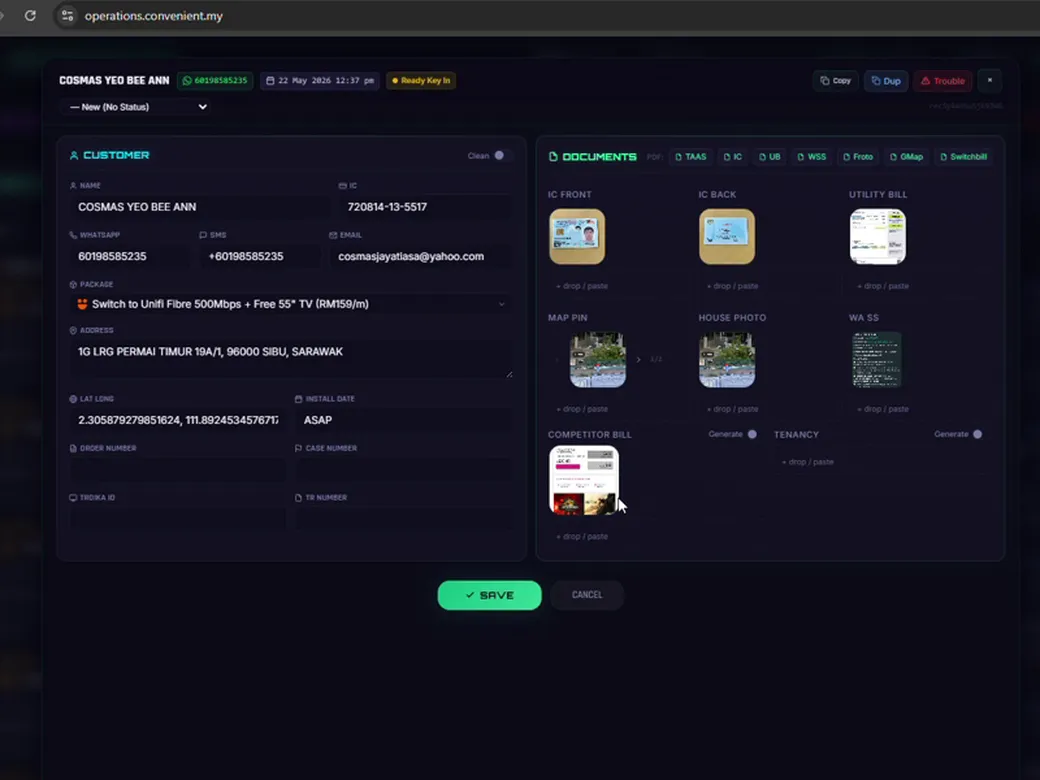
Section titled “Step 2 — Open the utility bill and look at it”Click into the bill. Decide which of the two cases you are looking at:
- Case A — The bill is not a PDF, or it is clearly only a partial bill. Go to Step 3.
- Case B — The bill is a complete PDF, but the extraction still missed the VOIP. Skip to Step 4.
Step 3 — Case A: send it to Trouble as missing info
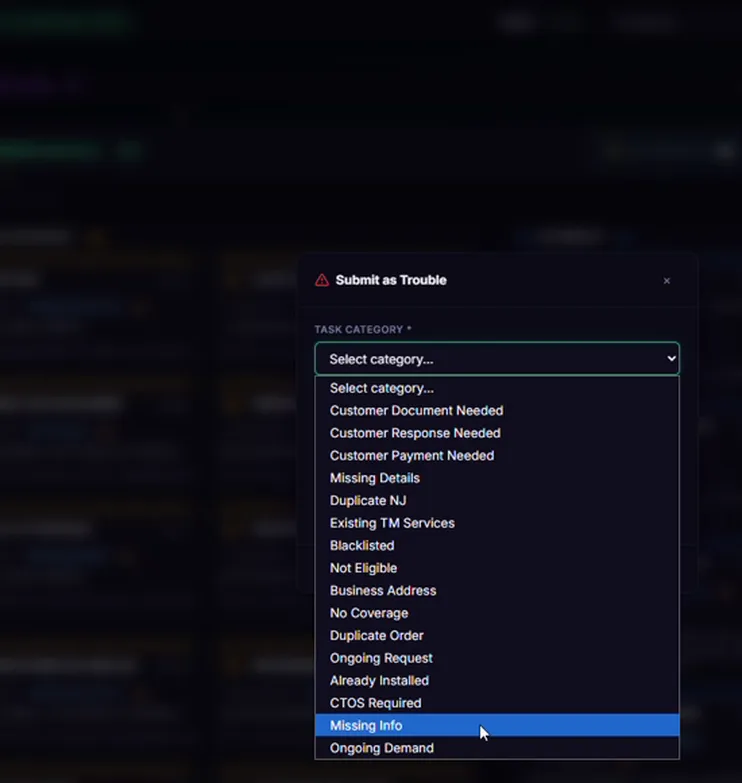
Section titled “Step 3 — Case A: send it to Trouble as missing info”If you cannot see a full bill, you cannot find the VOIP yourself. Click Trouble on the record and submit it as Missing Info. Someone will follow up manually with the customer.
Done — move to the next record.
Step 4 — Case B: open the PDF version of the switch bill
Section titled “Step 4 — Case B: open the PDF version of the switch bill”If the bill is in fact a full PDF (and the extraction just missed something), click Switch Bill to open the PDF and inspect it.
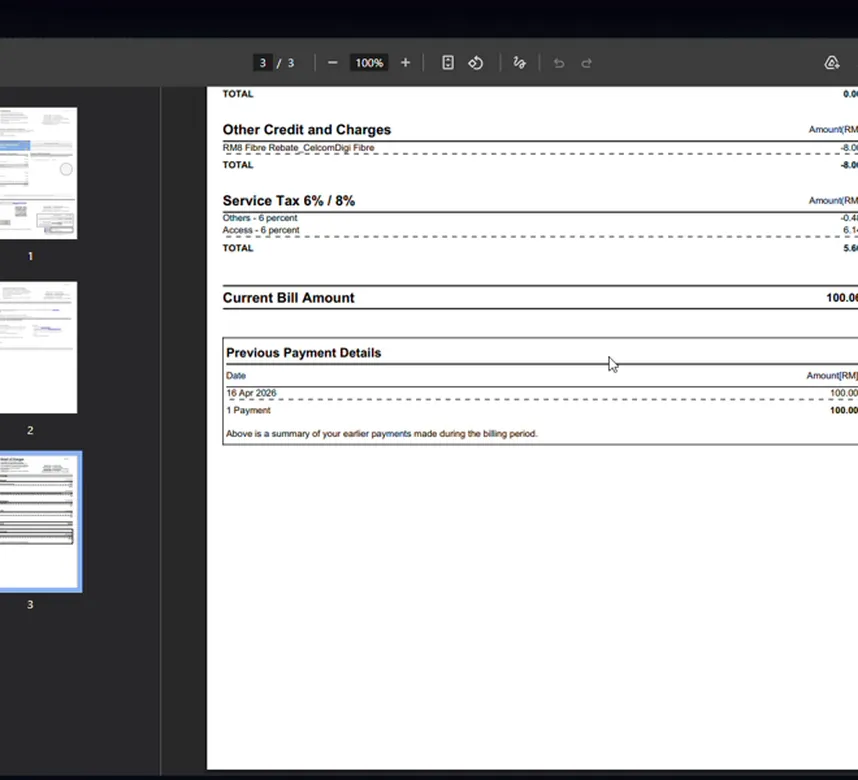
Step 5 — Find the VOIP number on the bill
Section titled “Step 5 — Find the VOIP number on the bill”Look for the customer’s phone line number. On a Celcom DigiFiber bill it may just be the mobile number listed at the top — there is no separate “fiber number” field. Copy it.
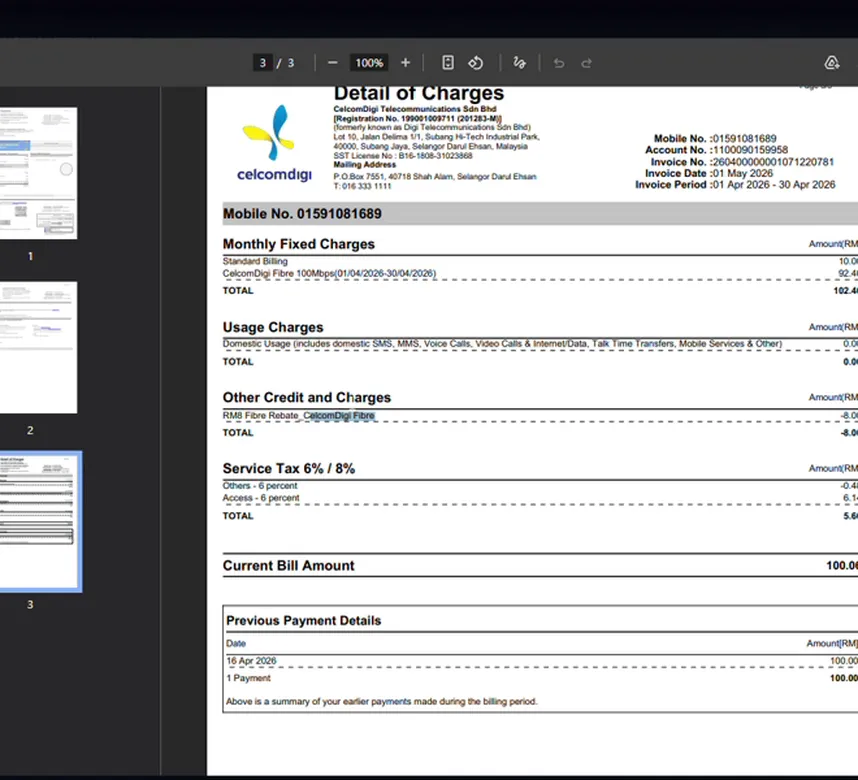
Step 6 — Fill the VOIP into Airtable manually
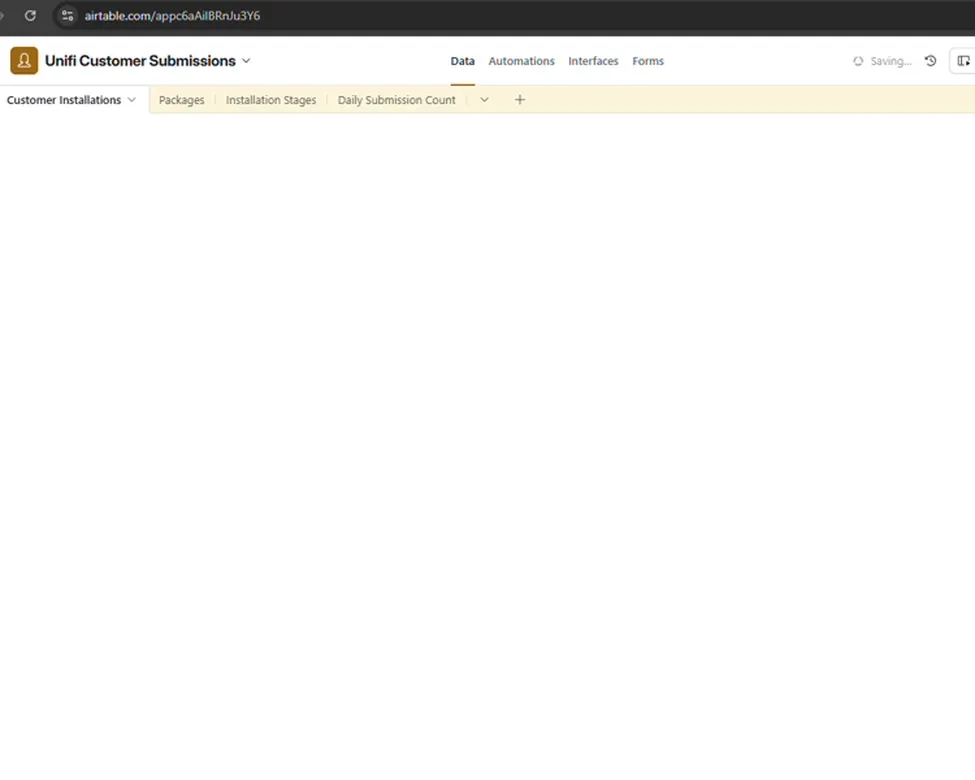
Section titled “Step 6 — Fill the VOIP into Airtable manually”You cannot fill the VOIP in the portal directly — fill it on the Airtable record for now. Paste the number into the VOIP field on the row.
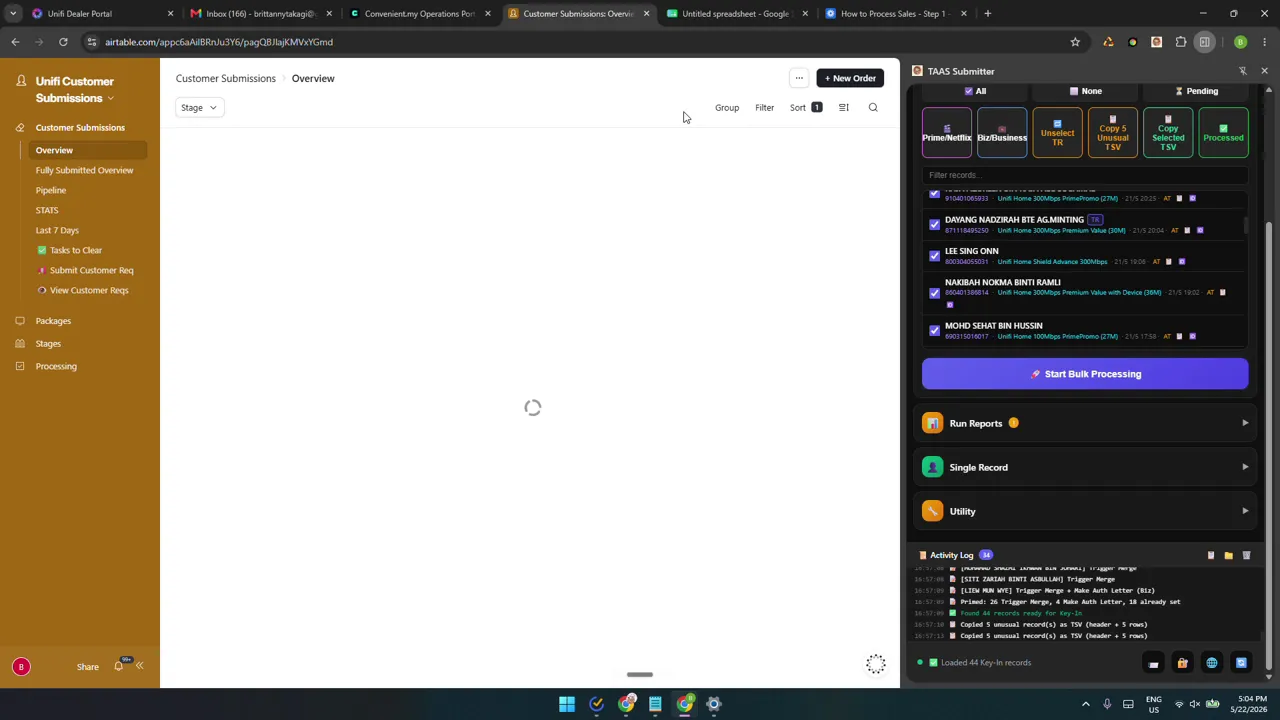
Step 7 — Re-fetch to verify
Section titled “Step 7 — Re-fetch to verify”Go back to the Key-In tab and click Fetch Records again. The unusual-records count should drop — the records you fixed will be gone, leaving any false flags behind. The number does not need to reach zero, but it should go down by however many you fixed.